XLR → XLR
Microphone to mixer
Use a balanced XLR microphone cable from the speaker's microphone to a mixer mic input. Turn on phantom power only if that microphone requires it.
Follow the signal from your microphone to the broadcast. Choose your mixer type below to see the right cable, interface, operating system setup, and channel routing.
Your signal path
Connection map
The mixer's output becomes the input Exbabel listens to. The connection between the mixer and computer changes with the mixer type you selected.
Mic → mixer: balanced XLR microphone cable.
Mixer → interface: line-level cable matched to both sockets.
Computer → Exbabel: select the interface in sound settings and verify the live input meter.
The moving arrows illustrate signal direction. Actual connectors vary by mixer model.
An analog mixer needs an external audio interface to turn its output into a computer input. The XLR cable connects the microphone to the mixer; the mixer-to-interface cable must match the line input.
See the hardware
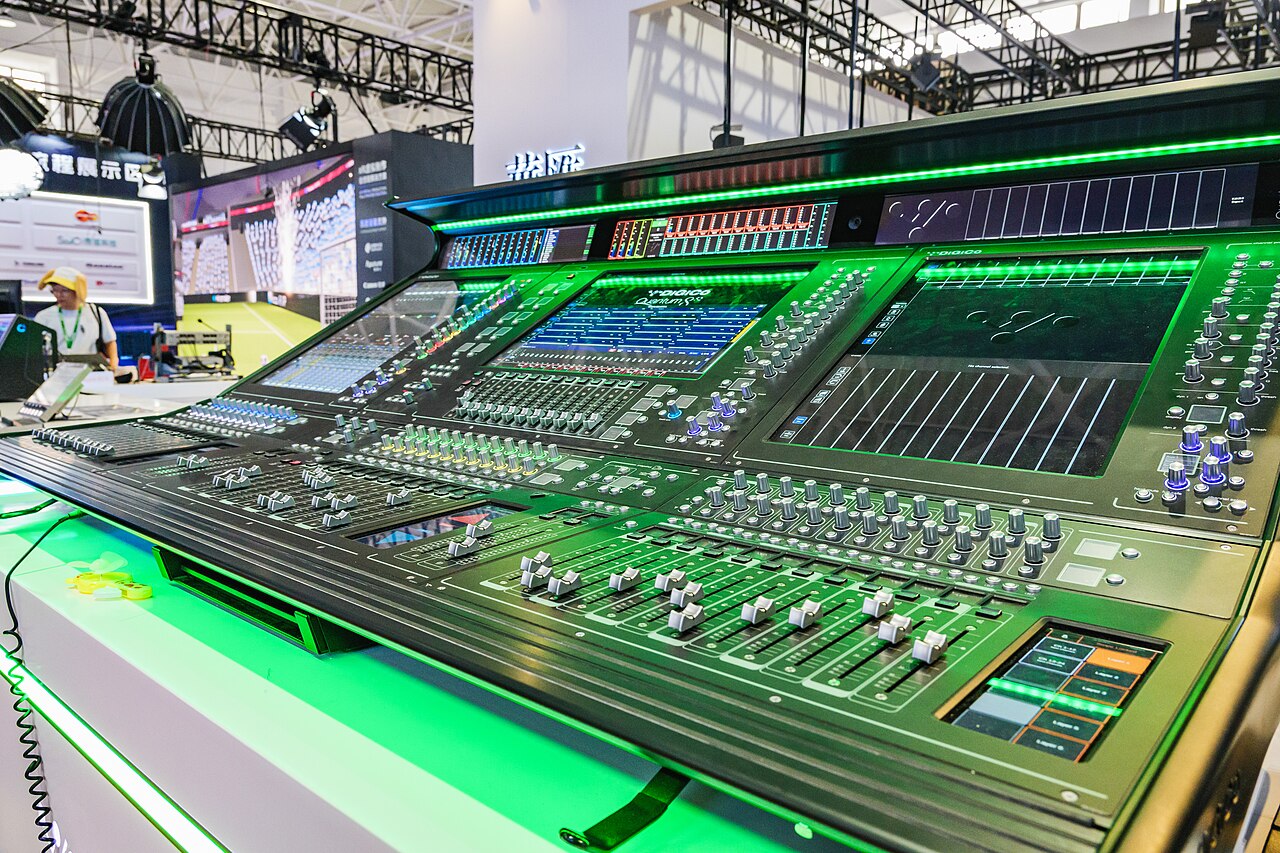
A large console can create a dedicated speech bus. Find the bus output or USB send patch before choosing a cable.
Photo: TurnOnTheNight · CC BY-SA 4.0 ↗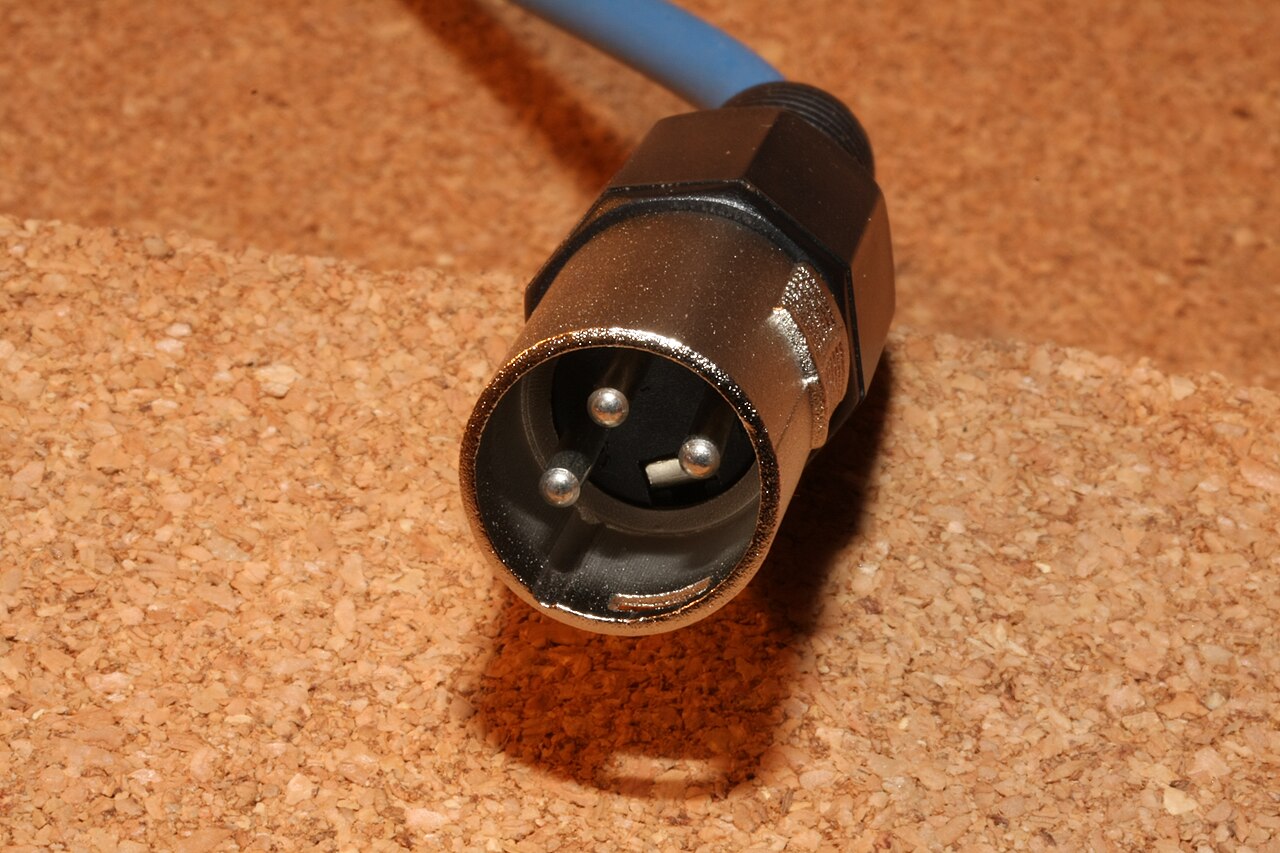
A microphone normally reaches the mixer by XLR. Match male and female ends and check whether the destination expects mic or line level.
Photo: RobertKuhlmann · CC BY-SA 3.0 ↗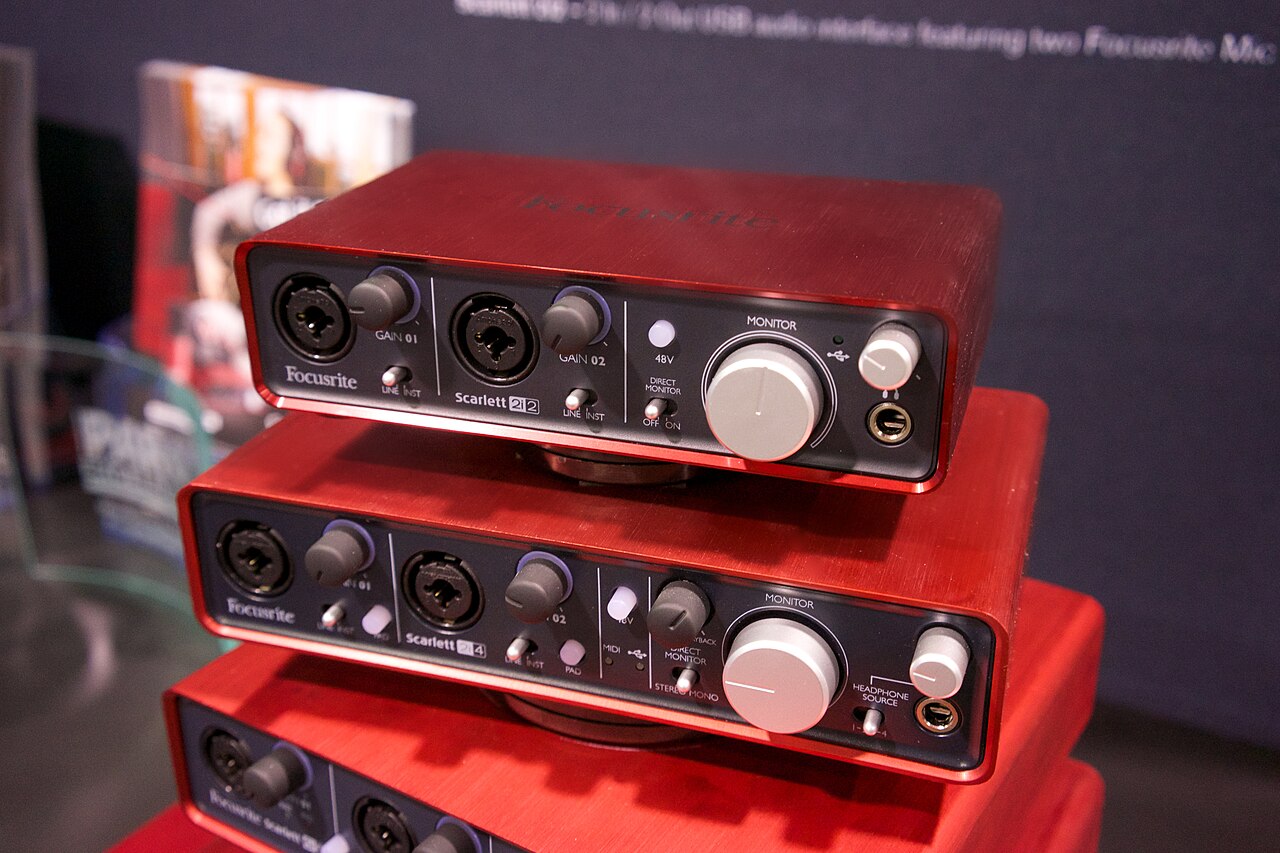
An interface converts an analog mixer feed into a USB computer input. Photo shows earlier Scarlett models; connector placement differs on the recommended 4th Gen 2i2.
Photo: Matt Vanacoro · CC BY 2.0 ↗Read the labels beside the sockets. An XLR-shaped socket does not automatically mean it accepts a mixer's line-level signal. If you have a Scarlett 2i2 fourth generation, its front ¼-inch jacks are the line inputs and its rear XLR sockets are microphone inputs.
Use a balanced XLR microphone cable from the speaker's microphone to a mixer mic input. Turn on phantom power only if that microphone requires it.
A common match for a mixer's balanced XLR output and an interface's ¼-inch line jack. Check the mixer's output wiring and your interface manual.
Use this when both the mixer output and interface input are balanced ¼-inch line connectors. For stereo, you normally need two cables and two inputs.
Buying guide
For a single mono speech feed, one line input is enough. For a stereo feed, choose two line inputs. These are practical examples with manufacturer-documented line inputs, not a promise that any interface solves every mixer or browser routing issue. Amazon buttons open current search results so you can check the seller, exact generation, included cable, return terms, and current price.
Two front ¼-inch line inputs suit a mono or stereo mixer feed. It is compact and connects to the computer by USB-C.
Check: Use the front line jacks for mixer line outputs; the rear XLR sockets are mic inputs.
Two combo inputs accept line-level signals, and the front-panel LCD meters make it easy to see audio before opening the browser.
Check: Set each input for line level according to the M Series guide and watch for clipping.
Two combination mic/line inputs give you a basic two-channel path from an analog mixer to USB.
Check: Check the exact listing and local driver guidance for your computer.
Already have a USB mixer? Try its built-in USB interface first. An extra interface adds another cable and conversion stage without necessarily exposing more browser channels.
Mark each step as you finish it. Your progress stays on this page while it is open.
0 of 5 complete
Operating system setup
Before opening Exbabel in Chrome or Edge, make sure your operating system recognizes the audio interface or USB mixer as its active microphone input and verifies sound is coming through. This isolates physical cable and gain issues before you ever enter the browser.
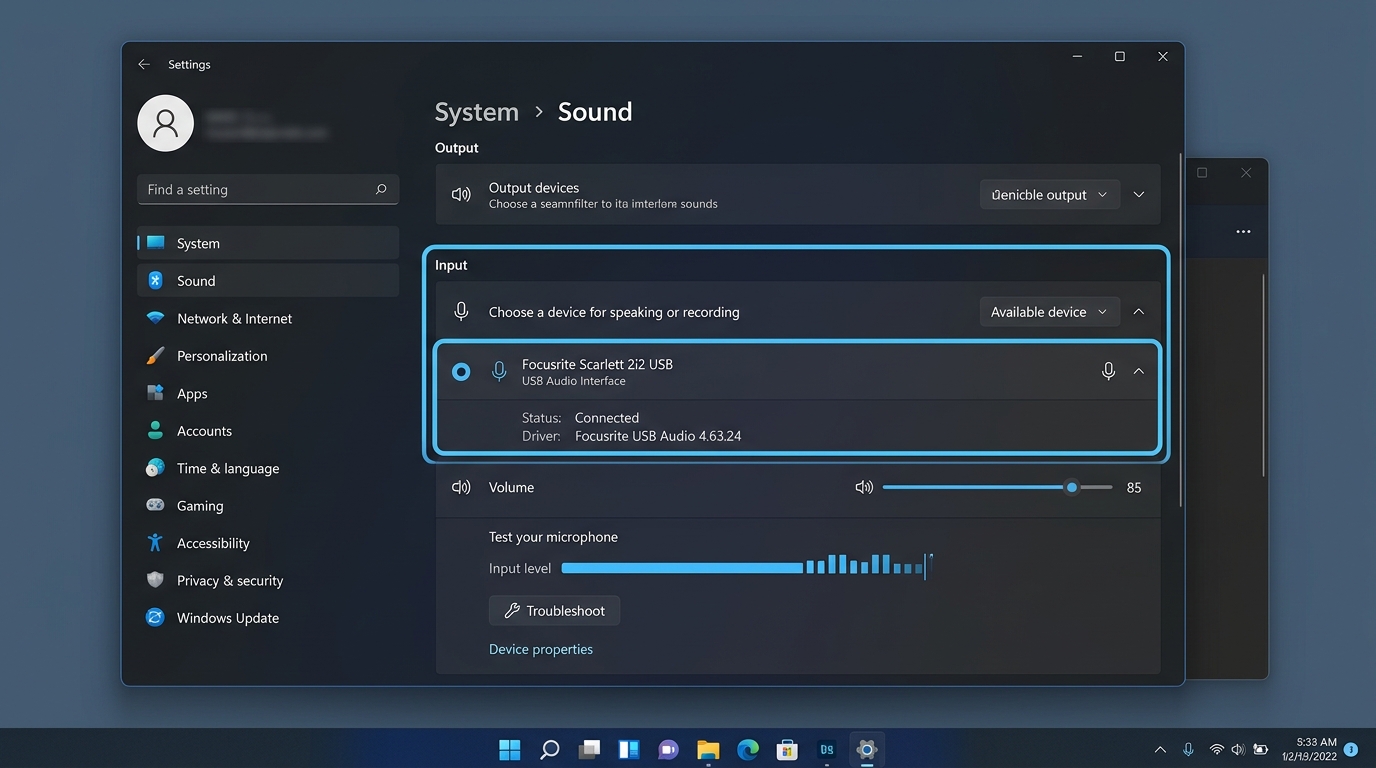
Press Win + I on your keyboard to open Windows Settings, then navigate to System → Sound. Alternatively, right-click the speaker icon in the bottom-right taskbar and select Sound settings.
Scroll down to the Input section. Under Choose a device for speaking or recording, select your connected interface (e.g., Focusrite Scarlett 2i2 USB, Line (Behringer UMC), or your console's USB Audio driver).
Speak into the presenter microphone at normal speaking volume. Watch the Test your microphone input level bar. The blue indicator should comfortably bounce up to 70–85%. If the meter stays dark or silent, turn up the gain knob on the interface or verify the mixer aux send fader.
In Windows Settings, go to Privacy & security → Microphone. Verify that Microphone access is switched On, and that Let desktop apps access your microphone (including Google Chrome and Microsoft Edge) is allowed.
Signal not moving on the operating system meter?
Check that your audio interface gain knob is turned up until its LED ring turns green when speaking. If using an analog mixer, ensure the aux or matrix master fader is raised and unmuted.
Large USB mixers
A mixer may have 32 or 64 physical or USB channels, yet a browser can expose fewer to a web app. Exbabel can only select and meter the channels the browser supplies. The most reliable shared starting point is to route your speech mix to the mixer's USB sends 1–2, then confirm the input meter moves before broadcasting.
Routing result
Your browser sees 2 of 32 channels.
Send the speech mix to USB channels 1–2 at the mixer. A signal present only on a higher USB send will not appear in this browser input.
Choose a dedicated aux or matrix bus for speech so the translation feed does not follow house speaker changes.
Patch that bus to USB send 1, or to USB sends 1–2 for a stereo mix, using the mixer's routing screen or control app.
Confirm the computer's input meter and Exbabel's meter move; open Audio input setup to select the responding channel before broadcast.
Channel counts are illustrative. What a specific browser exposes depends on the browser, operating system, driver, and device. The app cannot detect every mixer's physical channel count from its USB name.
If the meter is silent
Work from the microphone toward Exbabel. Stop at the first meter that does not move.
Check the mic cable, channel mute, gain, and whether a condenser mic needs phantom power at the mixer.
Check aux or matrix send level, pre/post fader choice, bus mute, and output patch.
Match line-level sockets and cables. Verify input mode, gain, power, and that the interface is connected directly by a short USB cable.
Allow microphone permission in Windows or macOS Privacy settings, choose the exact device in Exbabel, inspect the Audio input setup channel selection, and reload after connecting the device.
Lower mixer/interface levels if clipping. Try a short known-good USB cable and direct computer port; close software that has taken exclusive control of the device.
A mixer output is normally line level. Connect it to an interface input rated for line level, not an XLR microphone preamp unless that input explicitly supports line level. Leave 48V phantom power off for a mixer output.
That is what the browser currently receives. Route the speech mix to USB channels 1–2 in the mixer or its driver software. If more channels appear in Exbabel, open Audio input setup and select the channel or pair carrying the mix.
No. A mixer that sends audio to your computer over USB already acts as an interface. An analog mixer needs an external interface or another computer audio input.
Use a standard XLR microphone cable for an XLR microphone going into the mixer. For a mixer's XLR output, check the interface's line-input connector: many need XLR-to-¼-inch TRS, while others accept line level on XLR. Match the labels and the equipment manuals.
Check the mixer's USB send or aux routing, the operating system input meter (see Windows & Mac setup above), and Exbabel's selected input. Send a test signal to the intended channel and open Audio input setup to see which browser-visible channel responds.